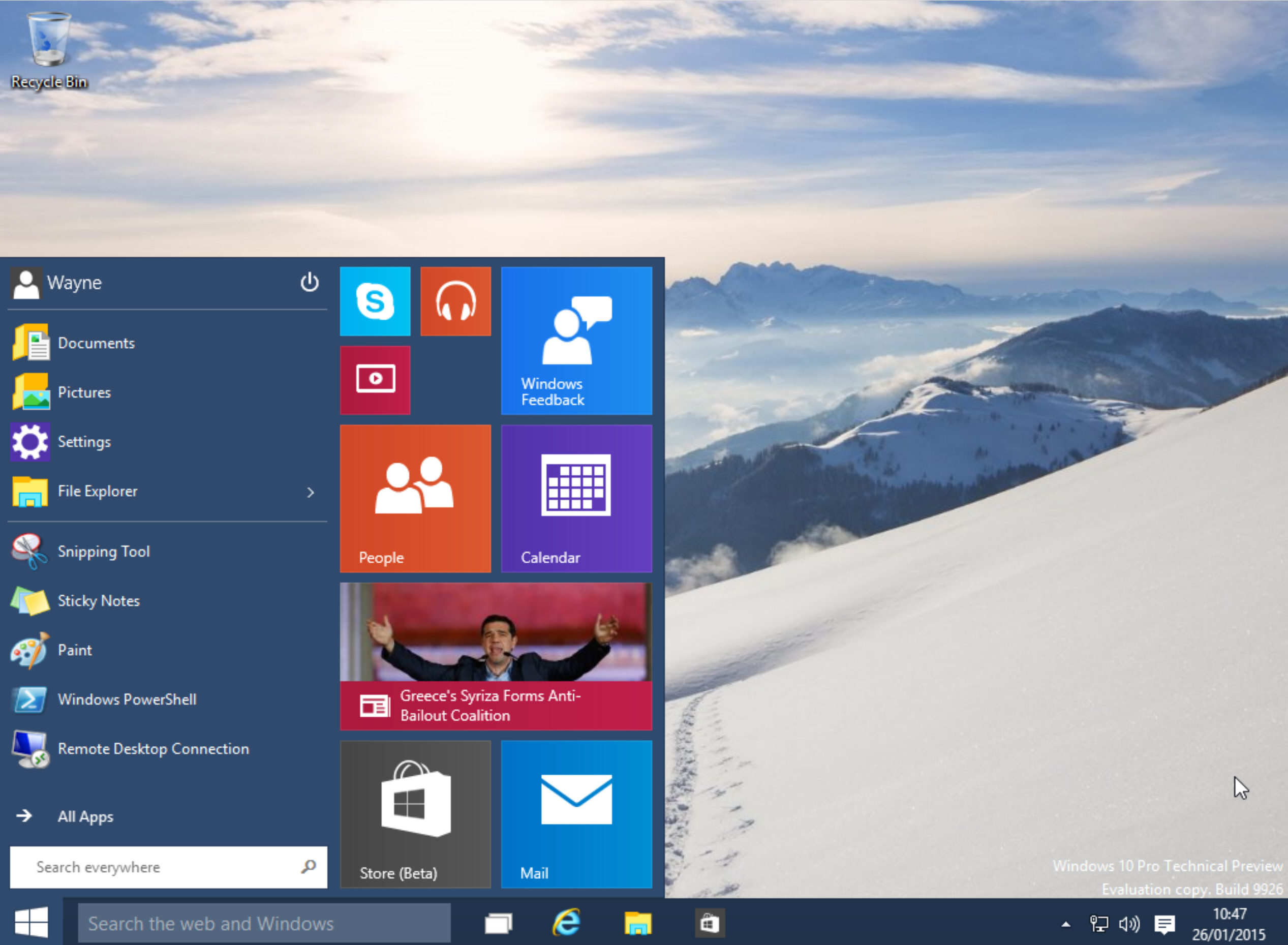
Microsoft released Build 9926 of the Windows 10 Technical Preview on Friday, and so far we’re liking what we see. There are a few issues with it, naturally, but it’s definitely a giant leap in the right direction (for the most part anyway).
There are several hidden features available, but not activated, in this new build, which are well worth exploring and so we’ve put together this handy guide explaining how to get them all working.
Firstly, there’s the redesigned system tray clock and calendar. The process is easy enough, you just need to open the registry editor, navigate to HKEY_LOCAL_MACHINE\Software\Microsoft\ Windows\CurrentVersion\ImmersiveShell and create a new DWORD (32-bit) value called "UseWin32TrayClockExperience".
There’s also a hidden logon screen you can activate by navigating to HKEY_LOCAL_MACHINE\ SOFTWARE\Microsoft\Windows\CurrentVersion\ Authentication\LogonUI\TestHooks. Double-click "Threshold" and change the value to "1". Changing it back to "0" will undo the switch.
The new build makes big changes to the Start menu with the introduction of the Continuum mode. If you prefer the way the old menu worked in the previous builds, you can switch back to that style with another registry tweak. Navigate to HKEY_CURRENT_USER\Software\Microsoft\ Windows\CurrentVersion\Explorer\Advanced, create a new DWORD (32-bit) value called "EnableXamlStartMenu" then restart Explorer.
File Explorer can open with one of two views -- "This PC" or "Quick Access". The former shows your drives and library folders, while the latter displays frequent folders and recent files. Quick Access is the default but you can change this by opening File Explorer Options, selecting the General tab, and choosing "This PC" next to "Open File Explorer to". You can also perform a simple registry tweak. Navigate to HKEY_CURRENT_USER\Software\Microsoft\ Windows\CurrentVersion\Explorer\Advanced and change the "LaunchTo" DWORD value to "1" (for This PC) or 2 (for Quick Access).
Cortana is now built into the desktop and resides on the taskbar. You can control her using your voice (provided you have a microphone plugged in) by clicking on the microphone button, but there’s also a hands free "Hey Cortana" function. This isn’t turned on by default, but is easily activated. Click on the Cortana icon on the taskbar and then click the hamburger button at the top left and select Settings. Turn "Let Cortana respond when you say 'Hey Cortana'" to on.
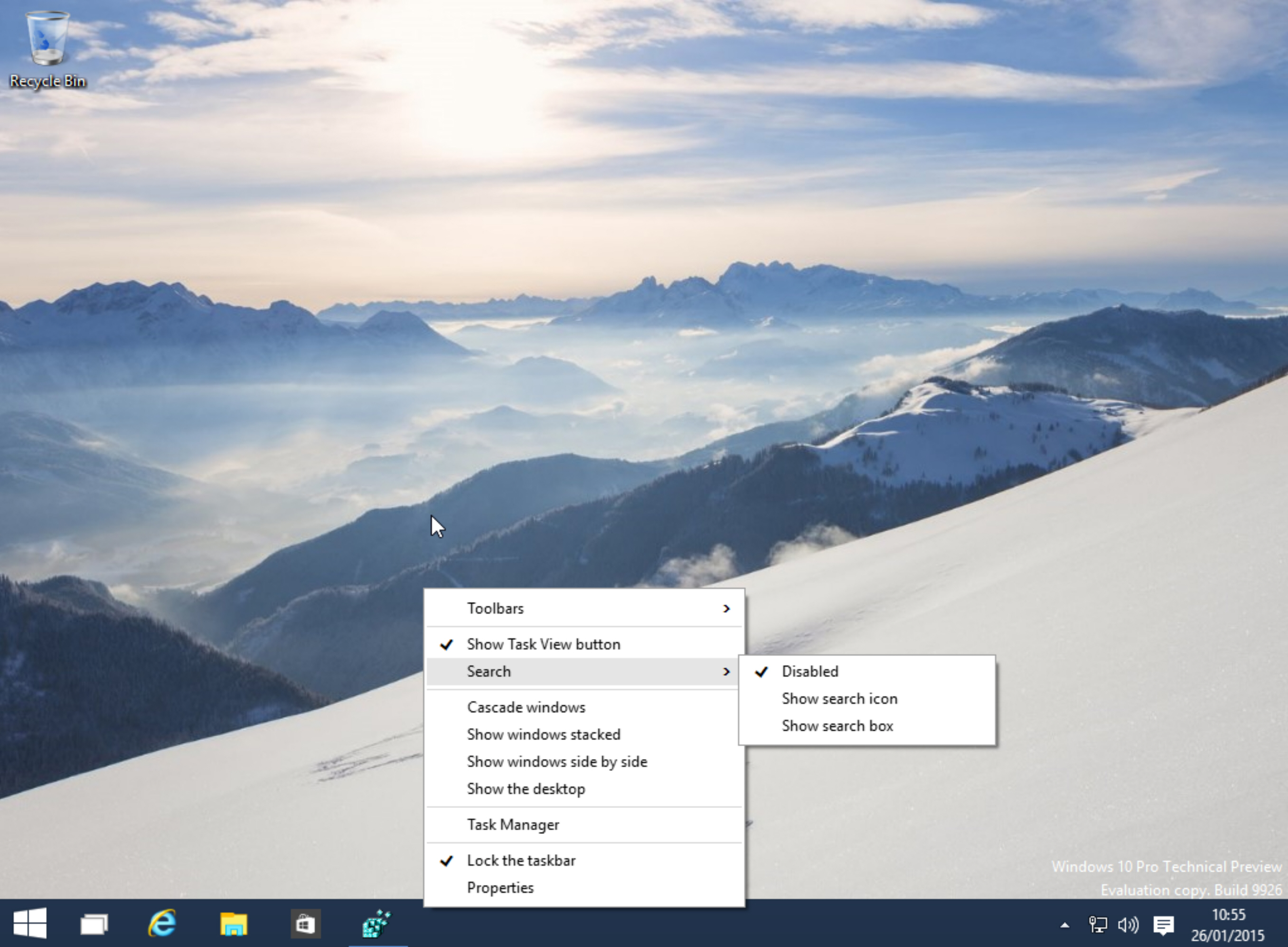
Finally, the search bar on the taskbar takes up a lot of space, but is easily disabled. Just click the taskbar, go to Search select “Disabled”. You can just display the search icon if you prefer.
Have you uncovered any hidden secrets in this new build? If so, share them in the comments below.

Tidak ada komentar:
Posting Komentar